How to run your first tour with VoiceGuide AirLink: a step-by-step guide
Decided to try VoiceGuide AirLink for your next tour and want to know exactly what to do, step by step? This guide covers it all: choosing the right license, starting the tour, and what to do if a guest loses connection. If you first want to understand why it beats traditional radio systems, check out the full comparison in this article.
Before you start: pick the right license
VoiceGuide AirLink works through licenses: each one enables a tour session for a set number of participants and a set duration (for example, 10 guests for 4 hours). Licenses aren't tied to a specific person, so they can be shared across a team or passed between professionals.
A few practical criteria for choosing:
- Count participants with some margin: if your group is usually 18-20 people, a 25-guest license is safer than a 15-guest one, so you don't risk running out of spots at the last minute.
- Occasional vs. regular use: a single license is enough for a one-off tour or a trial. If you work with groups regularly, packages (Tour Operator, 5-Tour) pay off because they bundle more licenses at better terms.
- Large groups: for events, schools, or very large groups, licenses go up to 100 participants.
If you haven't tested the app yet, the easiest way to start is the free trial: you can see how it works on a real tour before buying.
Recommended equipment
Nothing complicated is needed, but two small choices make a real difference to audio quality:
- For the guide: a small microphone (even an inexpensive headset or lavalier mic) instead of just the smartphone's built-in mic, for a clearer, steadier voice throughout the tour.
- For guests: any personal earphones or headphones will do — the ones they already use with their own phone.
How to start the tour (guide side)
Before every tour, download the app from App Store or Google Play on the download page if you haven't already.
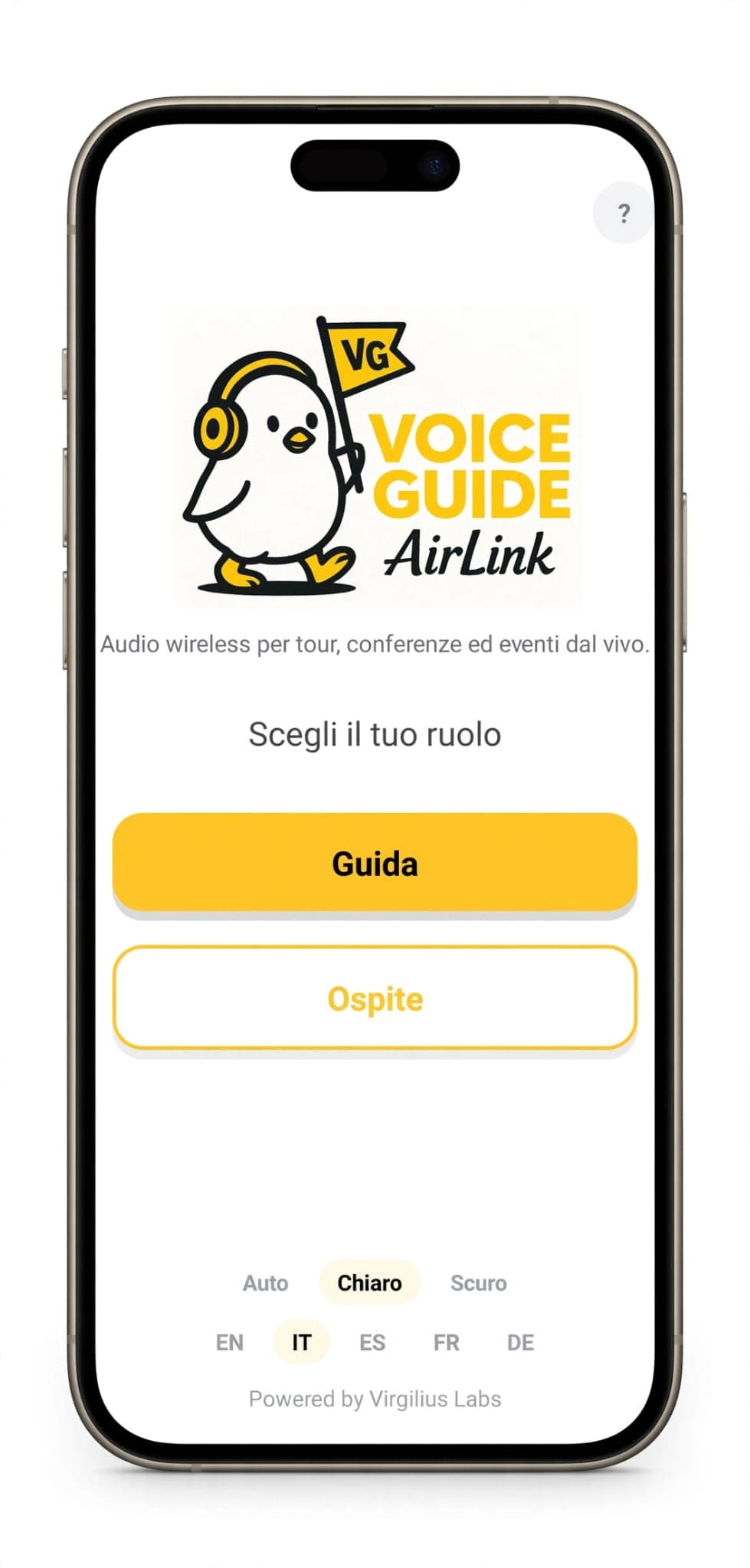
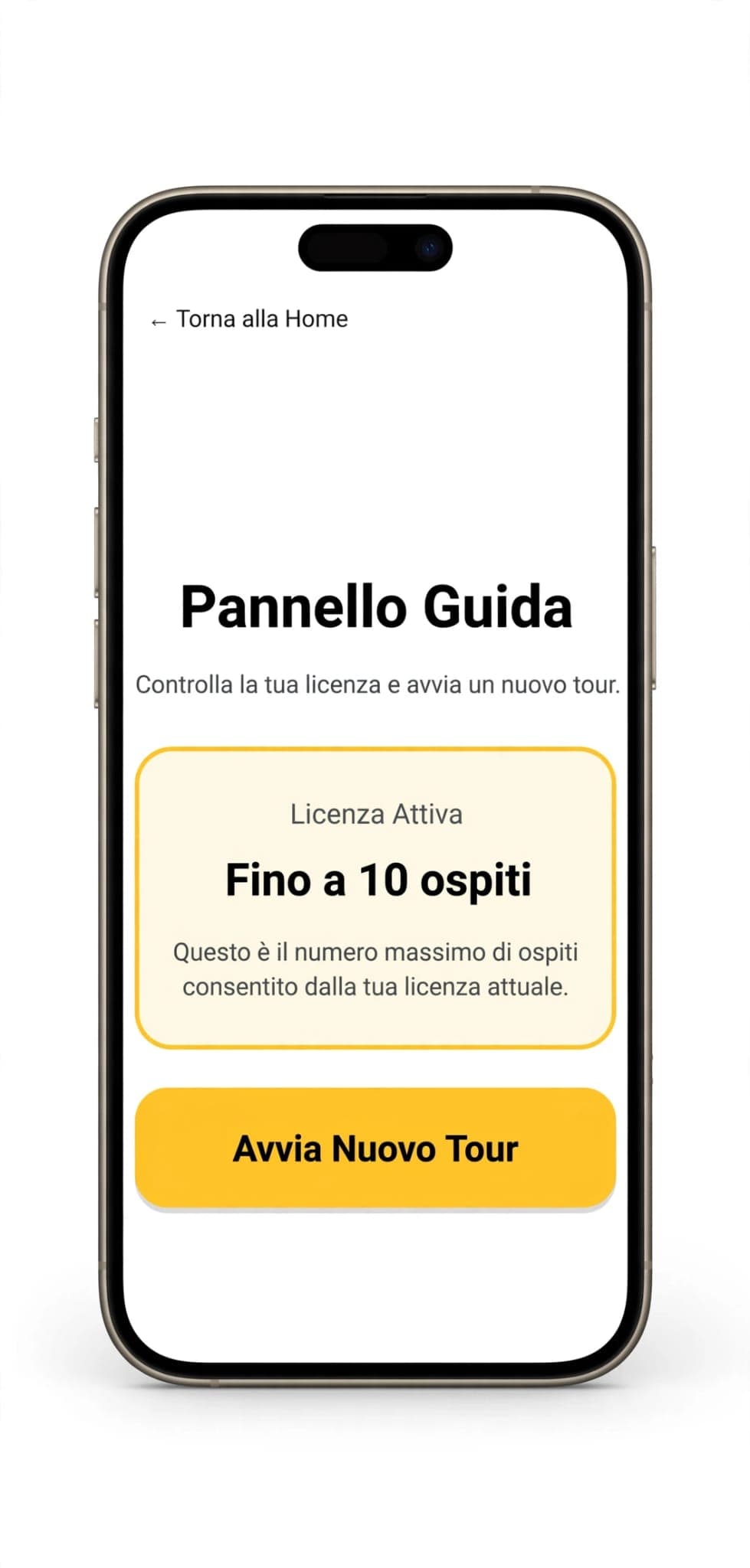
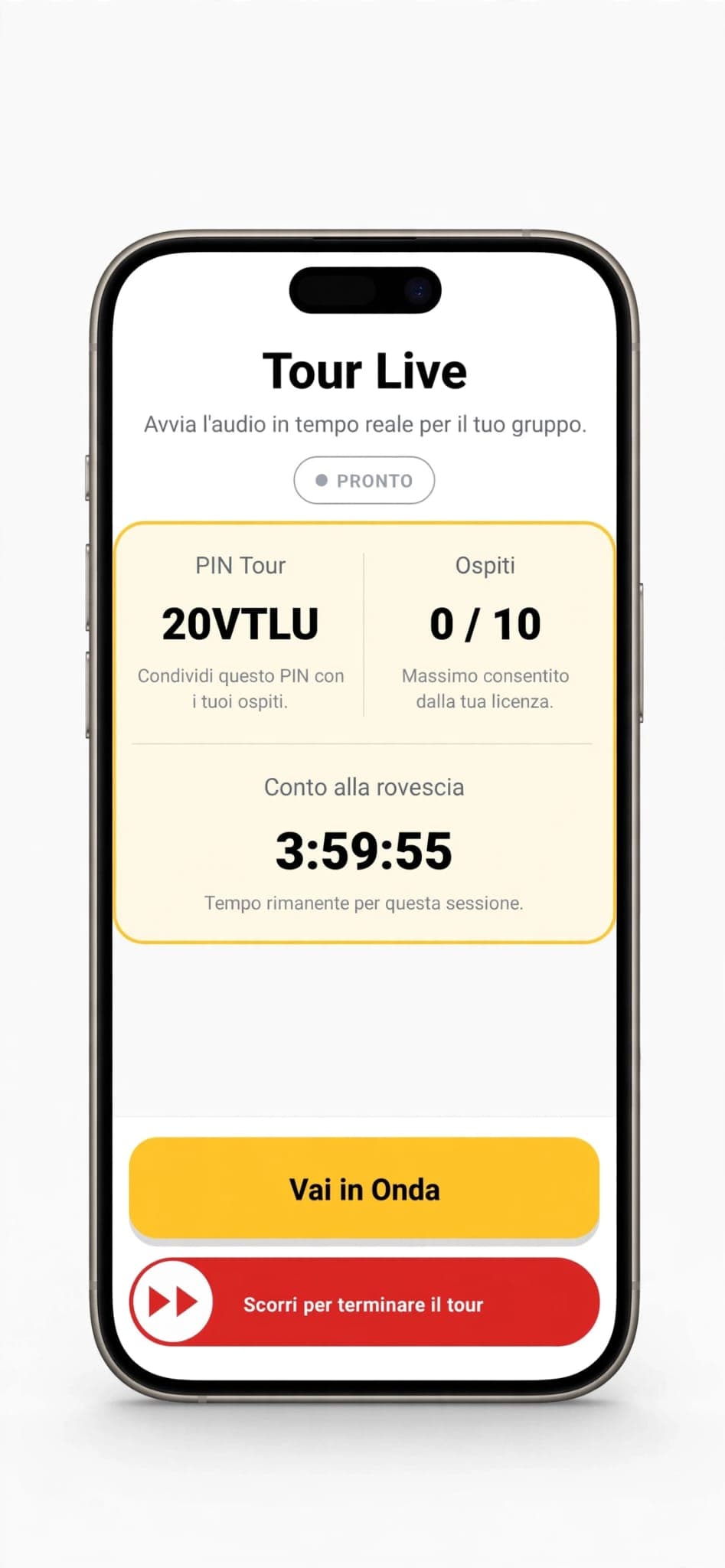
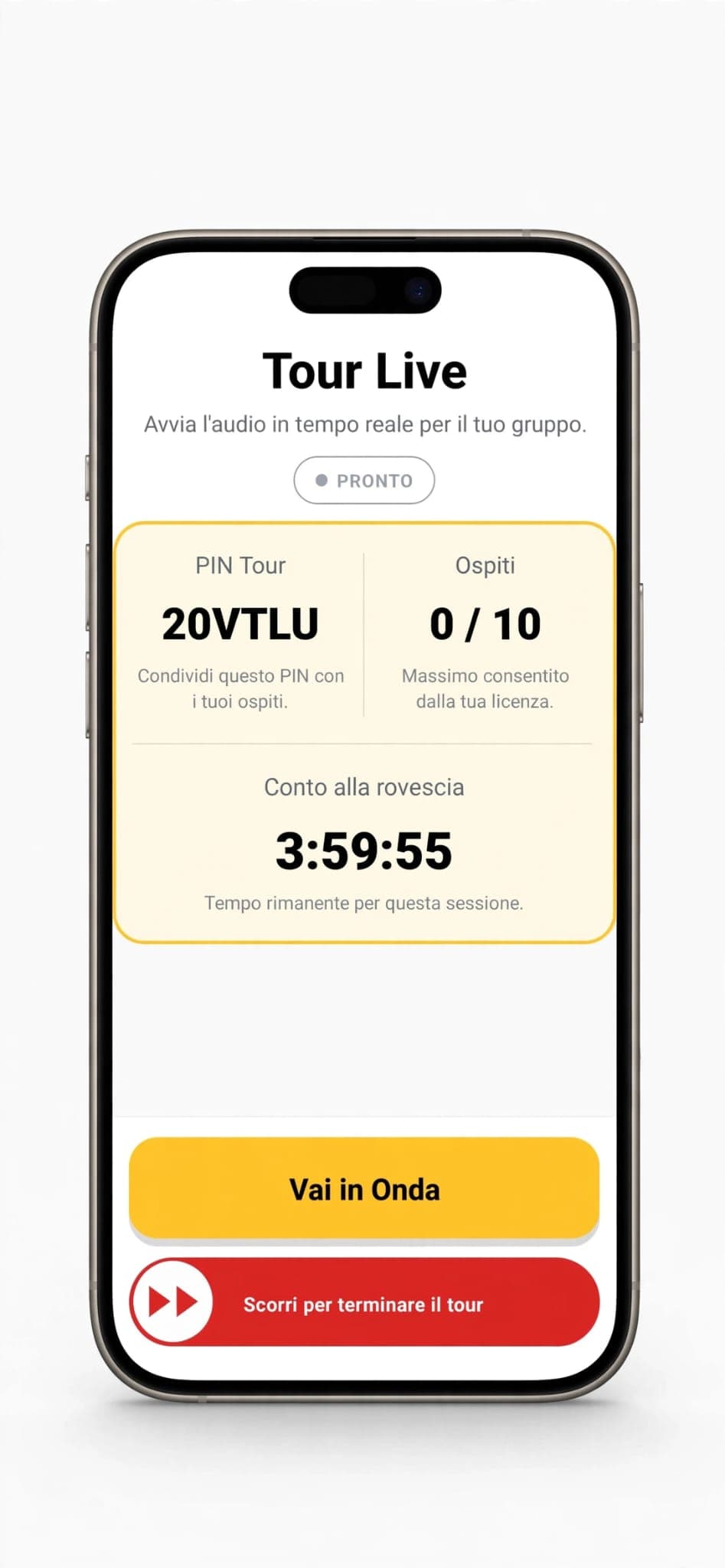
- Open the app and select Guide on the start screen.
- Enter your license code (trial or purchased).
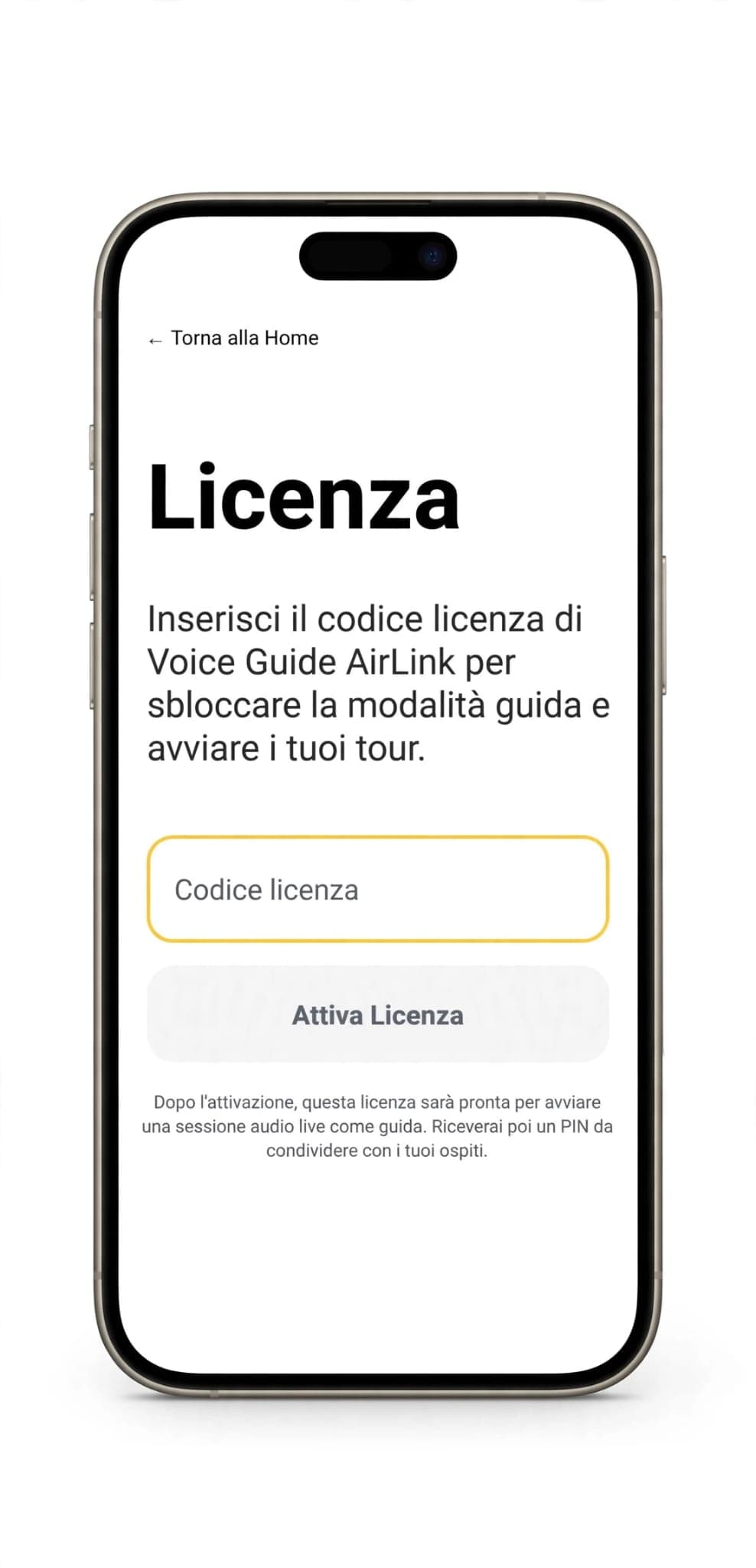
- On the Guide Panel you'll see the active license and the maximum number of guests it allows. Tap Start New Tour.
- Get the PIN to share with the group.
- Tap Go Live: the status switches to LIVE and your voice starts streaming in real time.
Tip: share the PIN with the group before you even start talking — say it out loud, put it on a visible sign, or send it via WhatsApp/email in advance if the group is organized (a school class or a corporate group, for example). Give everyone a few seconds to connect before you begin the visit.
How guests connect
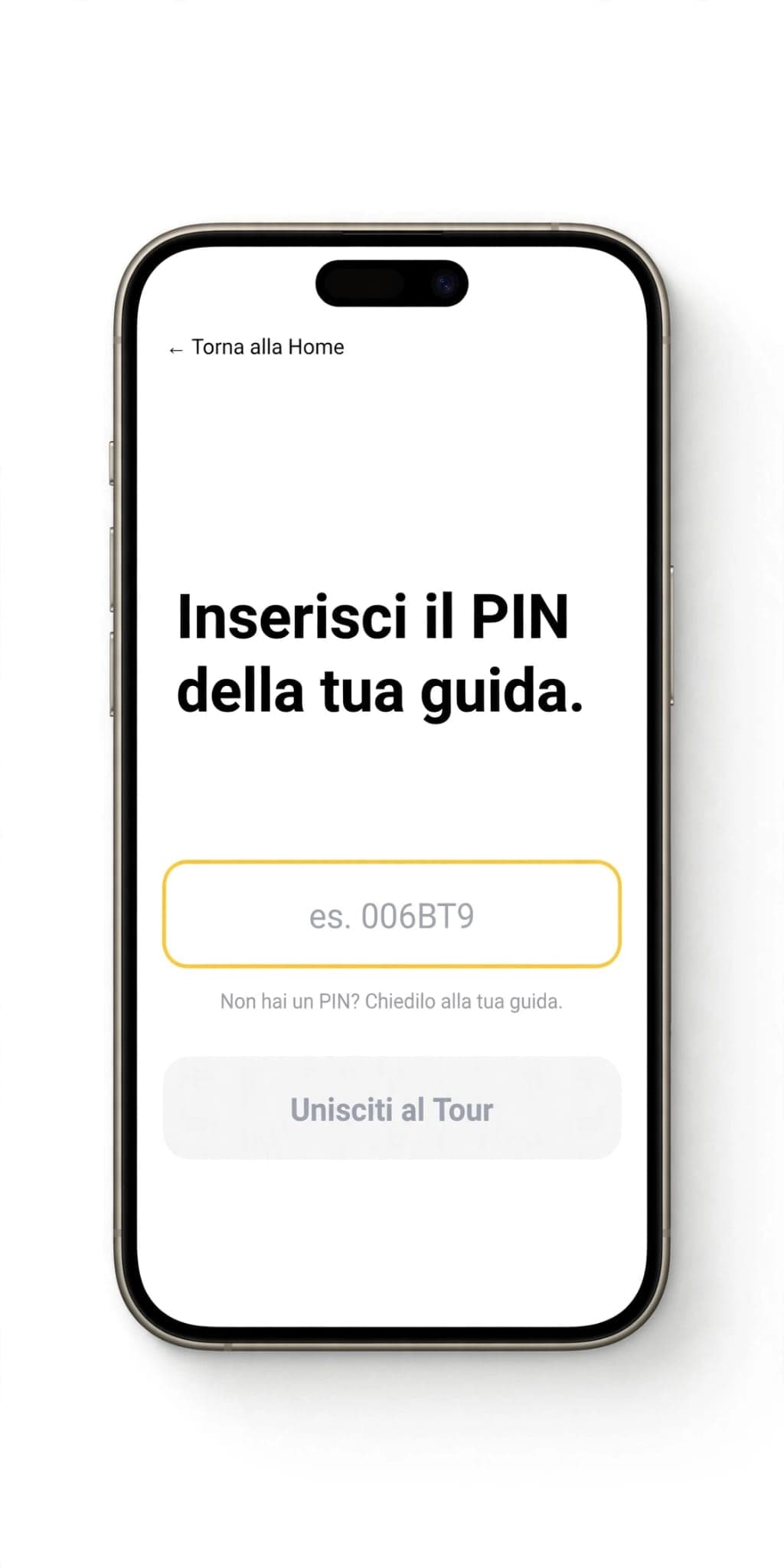
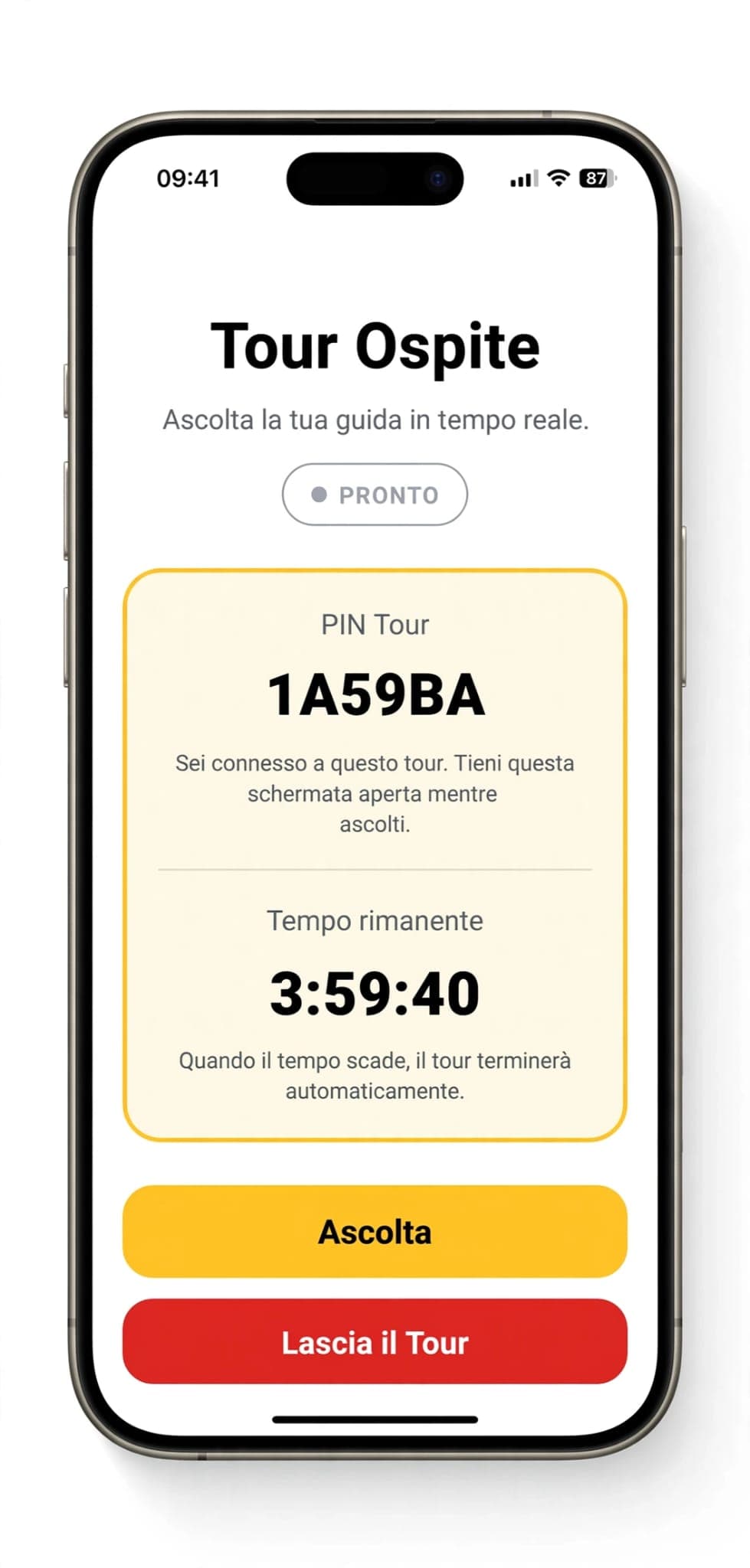
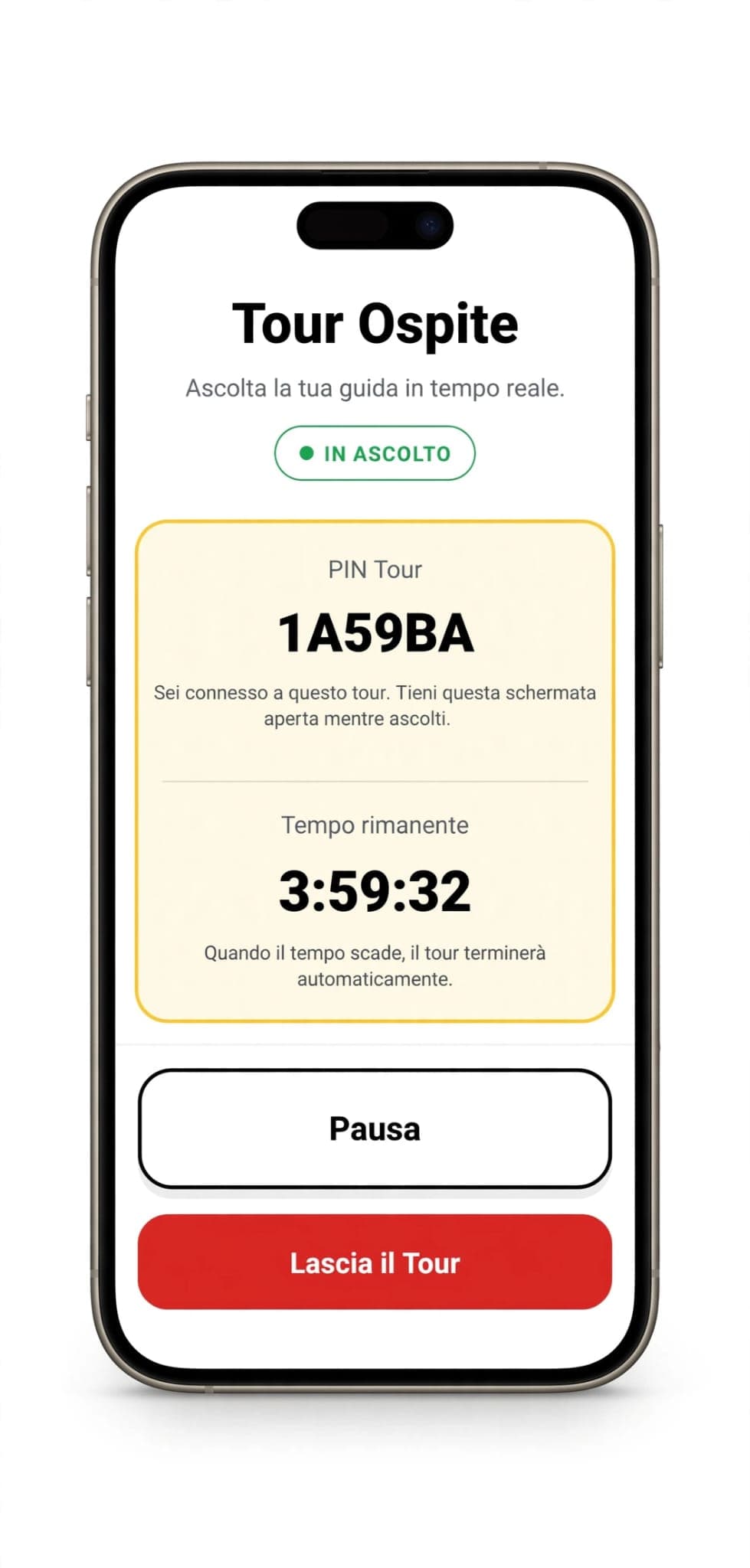
Each guest, from their own smartphone:
- Opens their dedicated screen and enters the PIN they received.
- Taps Join Tour.
- On the Guest Tour screen, taps Listen to start hearing the guide in real time.
No sign-up required, nothing to configure: they're connected in seconds.
During the tour
A few situations that can come up, and how to handle them:
- A break (end of an explanation, free time, lunch): tap Pause from the guide panel. Guests can do the same individually if they want to step away for a moment.
- A guest with no data connection: the guide can share their own connection as a hotspot for that participant.
- Connection drops for a moment (guide or guest): the app reconnects automatically as soon as the signal comes back, with nothing to restart.
- A guest wants to leave early: they tap Leave Tour — only they disconnect, the tour continues normally for everyone else.
- Photos and messages during the visit: the app keeps running in the background, so guides and guests can freely use their phones for other things without interrupting the audio.
How to end the tour
At the end of the visit, on the Guide Panel, swipe Swipe to end the tour. It's a deliberate confirmation gesture (not a simple tap) precisely because it immediately disconnects every connected guest — one last safeguard against closing it by accident.
Mistakes to avoid on your first tour
- Not testing the PIN beforehand: try starting a tour and connecting with a second phone (or have a colleague do it) before the real day, so you know exactly what to expect.
- Underestimating battery life: both the guide and guests will use their phones for the whole tour; start with a full charge, especially for longer tours.
- Not explaining the connection to the group: a few extra words at the start ("open the app, enter this PIN, tap Listen") keep anyone from falling behind or missing the first few minutes.
- Choosing a license that's too tight: better to have a bit of margin than to find out mid-tour that one more guest can't join.
Ready to go
With the right license, a microphone, and a PIN, setting up a tour with VoiceGuide AirLink takes just a few minutes — far less than the time it takes to hand out and collect traditional radio receivers.
If you haven't tried it yet, request a free trial license and test VoiceGuide AirLink on your next tour.